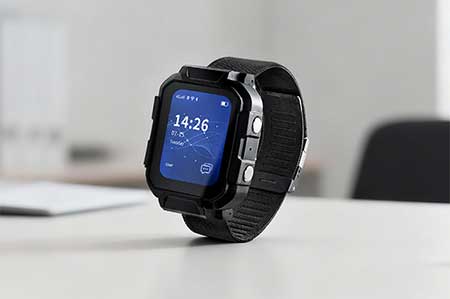
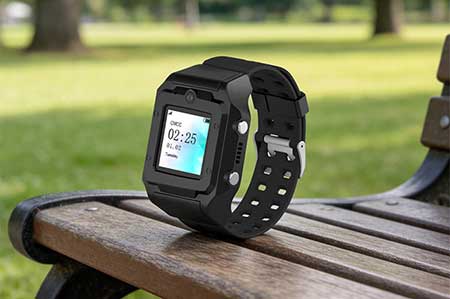
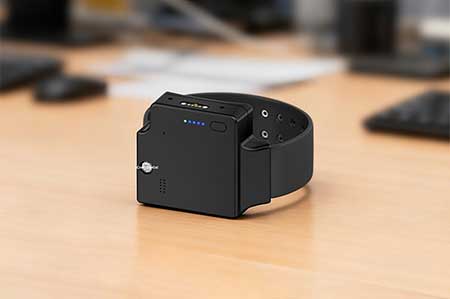
By setting up the department structure in the Traxbean GPS Tracking system, administrators can create sub-accounts for different departments and assign different roles and permissions based on the responsibilities and needs of employees. This includes, but is not limited to, accessing real-time location information, viewing historical tracks, receiving alert notifications, and managing geofencing.
In addition, a good department structure helps companies monitor and analyze data to more accurately screen and target specific departments or teams. This is of great significance for improving the pertinence and timeliness of decision-making.
In this guide, we will detail how to set up the department structure in the Traxbean GPS Tracking system, including how to create and edit departments, how to assign roles and permissions to departments, and how to associate employees and devices with specific departments. Through these steps, administrators can easily configure an efficient and secure department management system based on their organizational structure and business needs.